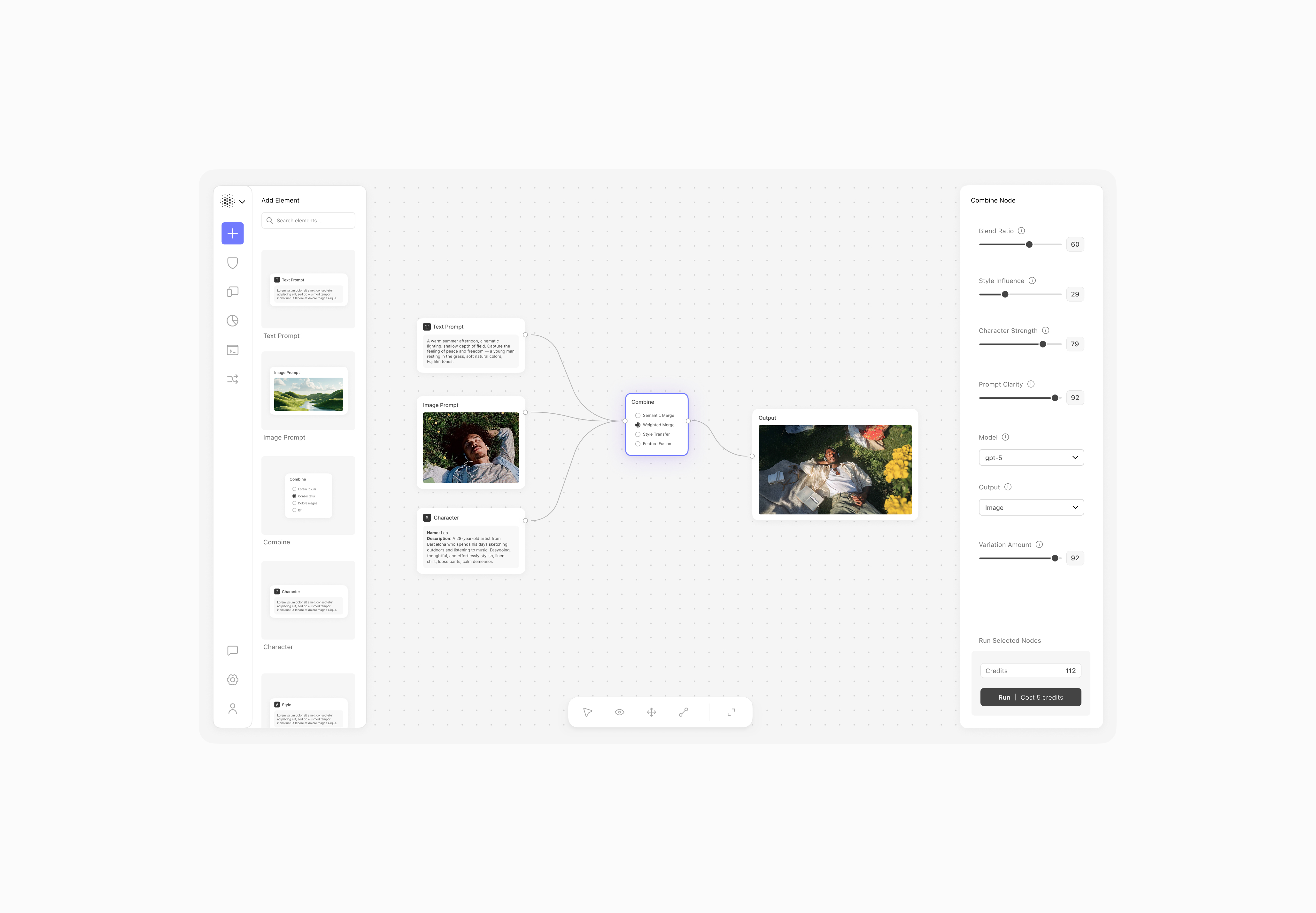
Node Interface Microinteractions
A walkthrough of the interaction design for Forma Labs' node-based Ai workflow tool. Each section demonstrates a key interaction pattern.
Node Drag Interaction
Nodes can be grabbed and moved around the canvas. We use Framer Motion's drag prop to enable dragging, with dragConstraints to keep nodes inside the canvas bounds.
On drag, nodes scale up slightly using whileDrag and gain a soft drop shadow to create a sense of lift. The dragElastic property adds a rubber-band feel when dragging near edges.
 Text Prompt
Drag the node around. Toggle the effects to see how they change the feel.
Node Selection
Clicking a node selects it, indicated by a colored ring using boxShadow. We track selection with useState and toggle it on click while using stopPropagation to prevent the canvas click handler from firing.
Clicking the text area enters edit mode using contentEditable, turning the div into an inline editor. A maxHeight on the container triggers scrolling for longer content.
Click the node to select. Click the text to edit.
Connection Handles
Connection handles appear on hover, keeping the interface clean until needed. We use a larger hit area (28×28px) around a smaller visual circle via radial-gradient. This makes targeting easier without cluttering the design.
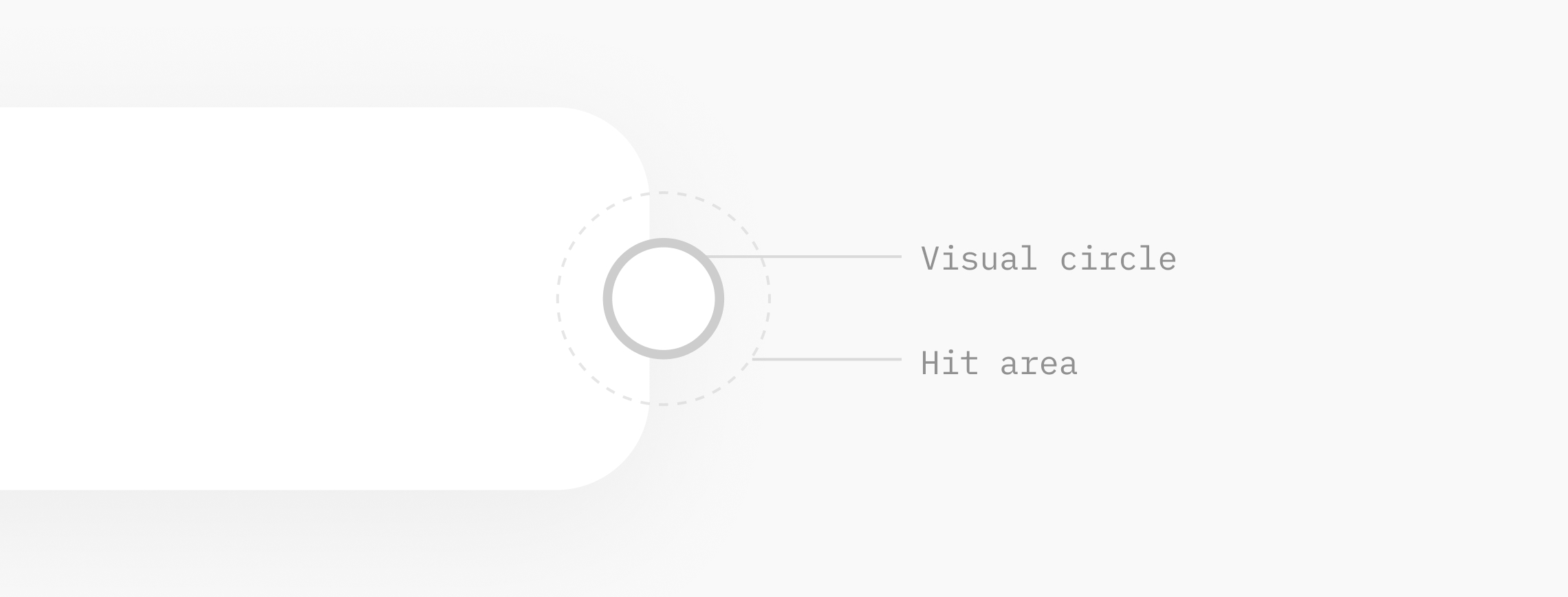
When hovering a handle, a small dot appears inside to confirm selection. This state persists while dragging and once connected, computed via an isActive flag that tracks hover, drag, and connection status.

Drag from a handle to the other node to create a connection. Hover the line to cut it.